MAXIMIZING AUTOMATION
TECHNOLOGY-ENHANCED PRESENTATIONS FOR LARGE AUDIENCES
PowerPoint provides impressive options, but success
depends on preparation, flexibility and a sense of humor
By Wanda Shumaker
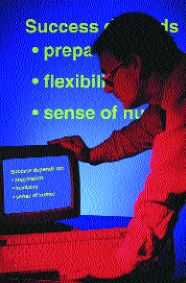 The hotel was impressive, the meeting room well appointed with tables, chairs, notepads, pens and water glasses. A PowerPoint presentation was already running an automatic slide show of the day's agenda. While waiting for the opening speaker, I began to review the presentation content. The text size varied from oversized to illegibly small, and virtually every line contained a misspelled word. The color scheme was such that anyone more than two rows back was viewing a red and white blur. Indeed, an impression was made. Judging from the audience snickers at several unfortunate misspellings, I doubt that it was the one intended by our host.
Automated data shows can be extremely effective tools for training, sales presentations, and client review. Consider the following tips and techniques before you "take your show on the road."
Write an outline, not a novel
Presentation software is meant to hit the highlights of your topic. The more sentence length you gain, the less legible your presentation becomes due to the need to reduce word size. Also, keep your primary bullet points per screen limited to no more than five whenever possible. What shows up on your PC may not be viewable on the overhead projection.
Keep the number of indented sub-points to a minimum. This may vary depending on the type of presentation, and whether or not printed handouts are prepared for the audience. Where additional information is being dispensed for the purpose of educating the audience, provide note pages with the audience handouts and refer to them, rather than stuffing too much information into the presentation itself.
Enhance illustrations with charts to bring home a very effective visual image of a situation, rather than throwing a list of numbers at your audience. Embedding objects from other applications such as spreadsheets is also possible; however, the size restriction may make the information in the cells too small to be legible to a large audience. Consider instead keeping the Excel sheet open in the background and using the Alt-Tab feature to flip over to that information; then Alt-Tab back to your presentation.
Set the stage
Think of an on-screen presentation as a stage, then think about the most effective color scheme for your stage. Studies have actually been performed which indicate that the most effective color combination for data shows is dark blue background with white or yellow text. Overall, dark backgrounds with light lettering do tend to work best for screen projection.
However, don't be so tied to the "demographic research" results that you limit your imagination. Consider using scenic pictures as backgrounds for a welcome break between sections of a lengthy presentation. The most effective presentations I have witnessed showed that the host actually devoted some time and sought education about the audience, including pictures related to the specific topic or industry.
Rehearsal
Carefully proofread your work, including a thorough spell check. If you are using the slide show to accompany a speech, rehearse the timing with the presentation. If at all possible, take the presentation to the actual location ahead of time. What might look fine in a small office space could have an entirely different appearance in a large auditorium. Allow yourself enough time for any necessary last-minute adjustments to text size.
If you will have an assistant to run the keyboard or mouse, rehearse together ahead of time. If a "keyboarder" is going to be provided for you, bring along an external mouse so that moving around the screen is not hampered by unfamiliarity with the laptop.
Always have a "Plan B"
Pay homage to Murphy and his famed ordinance and assume that anything can happen. Have handout copies, printed on as high a quality color printer as possible, in the event of a system malfunction. Bring a backup copy of your presentation on diskette and ask the facility sponsoring the event if they have any PCs or laptops that could be used as backup, just in case. If you are going to be provided with equipment, bring your own laptop as a backup.
Make sure the laptop has enough memory and speed to handle the high graphic content often used in such presentations. The rule of thumb is "more is better"--I rarely go out with less than 64mg of Ram on a laptop. Also, if you are using another party's equipment, make sure that the equipment has the software and the correct version.
Pack a few connection essentials. It can be embarrassing to find yourself with all the equipment you need but no way to "plug it in." Bring a lengthy extension cord and a multi-plug power strip. Most hotel and meeting facilities should have these items. However, I remember two incidents where this was not the case. If you are using some type of data show projector, keep an extra lamp bulb packed in the case. If you plan to have someone run the laptop keyboard for you, it might be useful to pack an external mouse and perhaps even a full-sized keyboard. You may be familiar with your laptop's idiosyncrasies, but your assistant might be more comfortable with the regular peripherals.
Bring your sense of humor!
As well as we might prepare for something, there is always that possibility that things will go awry when least expected. Toward the end of an instructional session, my "grand finale" bombed the laptop with an unrecoverable General Protection Fault. An audience member commented loudly enough for all to hear, "Gee, this is just like at my office!" I responded, "Just keeping it real, folks!" and continued to explain without the computer after the laughter and applause subsided.
Remember it is often your knowledge, grace and ability to recover from an unexpected setback that leaves an impression with your audience more so than the mishap itself. Know your material and know your audience, and the rest is simply icing on the cake. *
©COPYRIGHT: The Rough Notes Magazine, 1999